| Alert Text | Steps to Take |
| This expense report requires a valid Oracle Payee ID in order to issue payment. This employee/affiliate profile does not have an Oracle Payee ID associated to it. For affiliates, complete a PaymentWorks traveler registration to receive a Payee ID. For employees, submit a support.ucsd.edu case to troubleshoot your profile. |
- This cannot be resolved by the user and must be resolved by IPPS.
- Please submit a case to the Travel team and be sure to include the Concur user’s name, if they are an employee, and their UCPath ID (if applicable).
|
| Action: This report must be submitted by the Traveler/Cardholder so they can certify their expenses. An email will be sent to the traveler tomorrow to notify them that their expense report is ready. |
- Delegates are not able to submit Travel Expense Reports, New Card Requests, and Procurement Card Expense Reports.
- Delegates can still select the Submit Report button to discover potential alerts/errors, pertaining to COA/POETAF and/or policy.
- Delegates can also select the Submit Report button to send a notification to the cardholder/traveler the next day, asking them to log in and submit the Expense Report.
|
| Please only submit personal reimbursements, University Prepaid, T&E Card, or CTS-Air, Hotel expenses after the trip or event has passed. |
- Travel policy does not allow Final Reconciliation Expense Reports to be submitted before the trip has occurred.
- If the Business Travel Dates are prior to today's date, you may submit the Expense Report.
|
| Please attach your approved request to this expense report. Attach your request by clicking Report Details and selecting Manage Requests. |
- All Travel Expense Reports (other than Expense Reports with the Business Purpose: Mileage) are required to have a Travel Request created, approved, and attached to an Expense Report.
- Please review KB0032013 How to Create a Travel Request in Concur for the Travel Request process.
|
| Please submit your P-Card expenses on a Procurement Card Expenses report. |
- Ensure that Procurement Card Expenses is selected as the Report Type.
- To view/change the Report Type, select Report Details and then Report Header from the drop-down menu.
|
| This Procurement Card expense report includes one or more charges that were not made on the Procurement Card. Move any non-Procurement Card charges to a different expense report type. |
- Only Procurement Card charges loaded into the system can be attached to Procurement Card Expense Reports:
- Do not click on the Create New Expense tab when adding Expenses to a Procurement Card report
- Manual charges should never be created for Procurement Card
- The only Expenses you should add are the ones that appear on the Available Expenses tab
- Do not add T&E Card Charges to a Procurement Card Expense Report
- If 4 business days have passed and a card charge has not appeared on the cardholder’s Concur account, please submit a ticket
- To view/change the Report Type, select Report Details and then Report Header from the drop-down menu:
- Once an Expense Report is submitted, users are not able to change the Report Type
- Please recall the Report if the Report Type needs to be changed
- To remove non-Procurement Card charges, check the box next to each undesired charge and select Delete
|
| Allocations are missing. Please add in the necessary allocations and click 'Submit Request' again to clear this message. |
- Ensure that you have added your chart string information in the Allocation section of the Concur Request or Expense Report.
- To add your chart string, select all of the expenses that you added and then click the Allocate button.
- In the pop-up box, you will be able to enter the required fields: Financial Unit, Approver, Project, Task OR Financial Unit, Approver, Fund, Function if your department does not use Projects/Tasks.
- Note: You can allocate to multiple chart strings within the same expense report, and you can allocate based on amount or percentage.
|
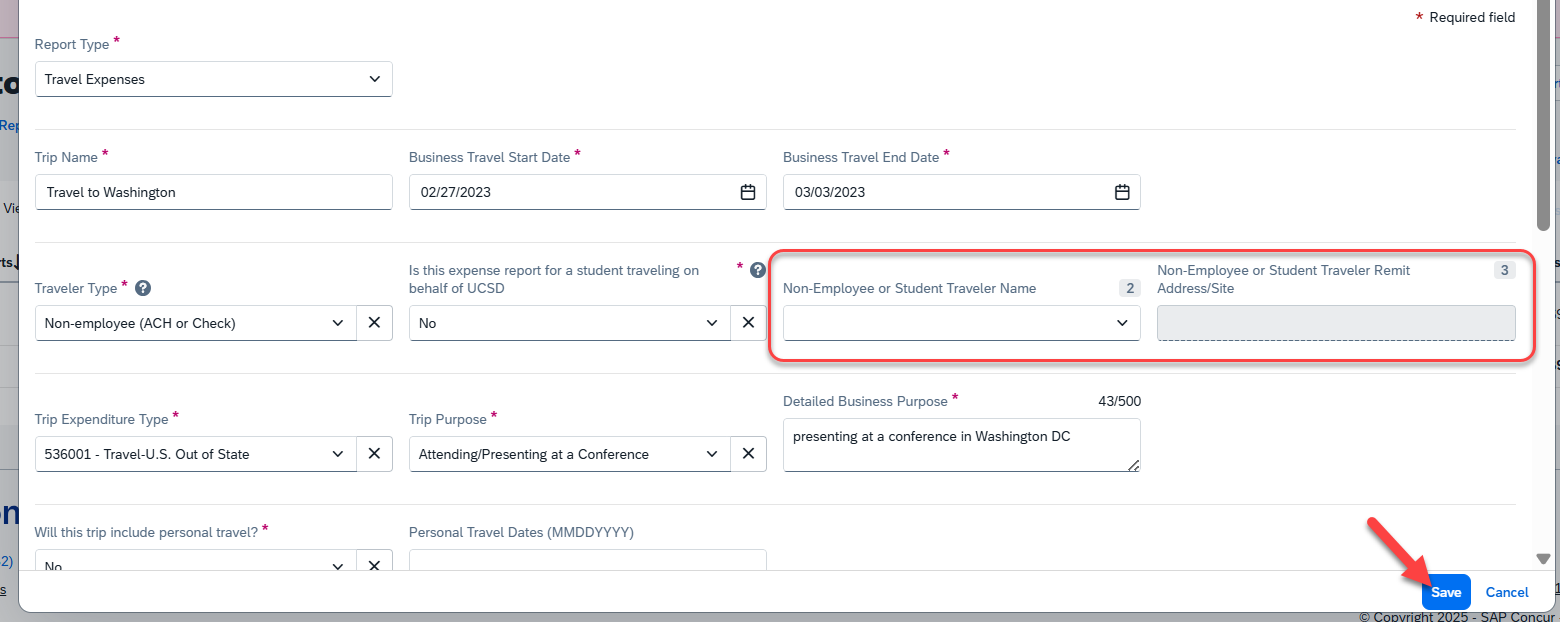
| This looks like a travel expense report for a non-employee or student traveler. For reporting purposes, please add the guest traveler name and address on the Report Header, even if there are no reimbursements due to this traveler. |
- Non-employee was selected as the Traveler Type and requires non-employee payee information to be added to the Report Header to indicate who the Guest Traveler is.
- All Guest Travelers must be invited to and register in PaymentWorks before traveling.
- The only time a Guest Traveler (non-employee) does not have to register in PaymentWorks is when they do not have any out-of-pocket expenses to claim.
- If the Guest Traveler (non-employee) is not being issued a reimbursement and only University Card products will be claimed in their travel expense report (i.e. UCSD - CTS Air, Hotel Card; UCSD - T&E Instant Card) then you will need to use the Traveler Type of Non-Employee (Card Charge only).
- When choosing this Traveler Type, you will need to enter the Guest Traveler's full legal name (first and last name) in the "Non-Employee Full Legal Name" field.
- For Guest Travelers who are claiming out-of-pocket expenses, once their registration is processed, the non-employee traveler will be available for selection in Concur.
- Enter the Guest Traveler's name and address on the Report Header in the fields outlined below and select Save to clear this message.
|
| You must fill out the required Chart of Account Segment on your employee profile when claiming a personal expense. Required segments are Fund, Financial Unit, Function. You can update these fields by going to Profile > Profile Settings > Expense Information.. Click “save” again to clear the message. |
- This alert occurs when it's the first time the Personal/Non-reimbursable expense type is being used under a Concur account.
- To clear the alert, you must click into the user's initials on the top right corner, and then select Settings. In the Settings page, you can locate Expense Information under the Expense Settings section, and then you must enter the required fields which are Fund, Financial Unit, Function. Then click Save.
- You must now go back to your expense report, and click into the expense line where you are using the Personal/Non-reimbursable expense type, and then just re-save the expense line. Re-saving the expense line is necessary to clear the red (x icon) alert, so that you're able to submit the expense report.
|
| INFORMATIONAL: This expense entry may be a duplicate of the following expense. This will NOT prevent the Expense Report from being submitted. [Expense Lines] |
- Concur will automatically check for potential duplicate expenses to prevent duplicate reimbursement or claiming the same expense.
- This alert is to prompt the user/delegate to review those expense entries and either ensure that they are true, separate expenses or taken action to correct/remove the expense entry if applicable.
- If you are certain that this is not a duplicate, no further action is required.
|